Multithreaded LOD in C++ for Godot
Last modified on 2021-06-30
See here for the (mostly up to date) older post for the previous version of this system.
Godot 4.0 is coming, and we’ve already seen some examples of automatic LOD generation. However, in the meantime, I’ve updated my Godot 3.0 LOD plugin to be multithreaded, as well as a few other quality of life improvements.
The system is available on my godot-extras repo here. There is also an example project which contains the addon itself.
Addon and LODParent
You do not need to add a patch to register the LOD multipliers anymore. However, if you use the GIProbe LOD I still recommend using the patch to have 4 GIProbe blending.
You add the addon as you would any other, enable it, and you will have a new node called a LODParent which inherits VisualInstance and has the lod.gdns script attached. For the other LODs, you will still need to
attach the respective script manually by adding it from the addon folder.
LODManager
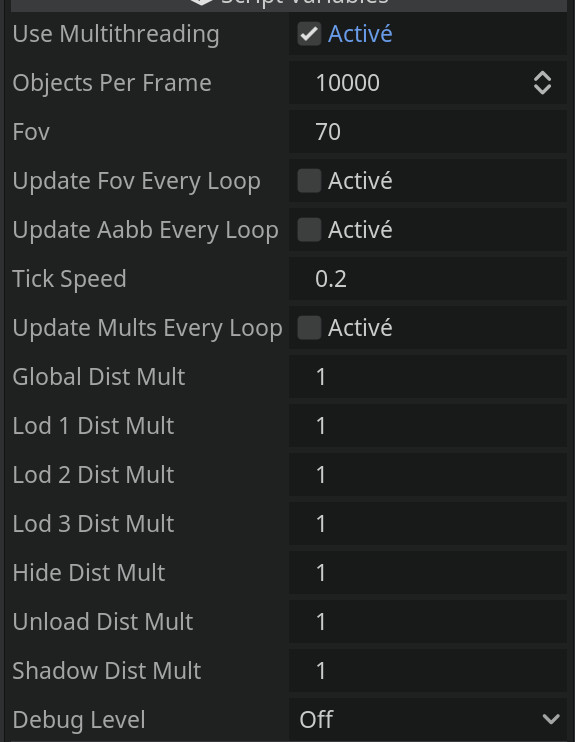
All the threading and various global properties are controlled from a LOD manager, which is a scene that is registered as an AutoLoad when the addon loads. As you can see, you have checkboxes that will determine if your multipliers, AABBs, and the fetched camera FOVs are updated on every loop. In most cases, this is not required and will slow down the thread, but I’ve left it here if you choose so.
There are also functions you can call on the manager.
This means you can update the multipliers at runtime. Once you change them in the manager, you will need to call
.updateLodMultipliersInObjects(). If you have done so from the ProjectSettings you will need to call .updateLodMultipliersFromSettings() which will automatically call
.updateLodMultipliersInObjects() once it fetches the values from the settings.
You can also update the AABBs manually using .updateLodAABBs() and the FOV by calling .updateFOV(). If you have updated the FOV and want to update the AABB, you will need to call
.updateLodAABBs() manually afterwards.
Using .stopLoop() you can manually stop the LOD thread.
The Objects Per Frame number is used only if you disable multithreading. To avoid hiccups, the number of objects processed per frame is broken into chunks of an adjustable size which you can set here.
The Debug Level field lets you select multiple levels of info to be printed to the console. Beware of console spam if you have many objects and set a high debug level.
Screen-based distances
Instead of some basic default distances and manual inputs, the system can now make a worst-case estimate of how far your object should be. This is possible for normal/mesh objects, MultiMeshInstances, and GIProbes.
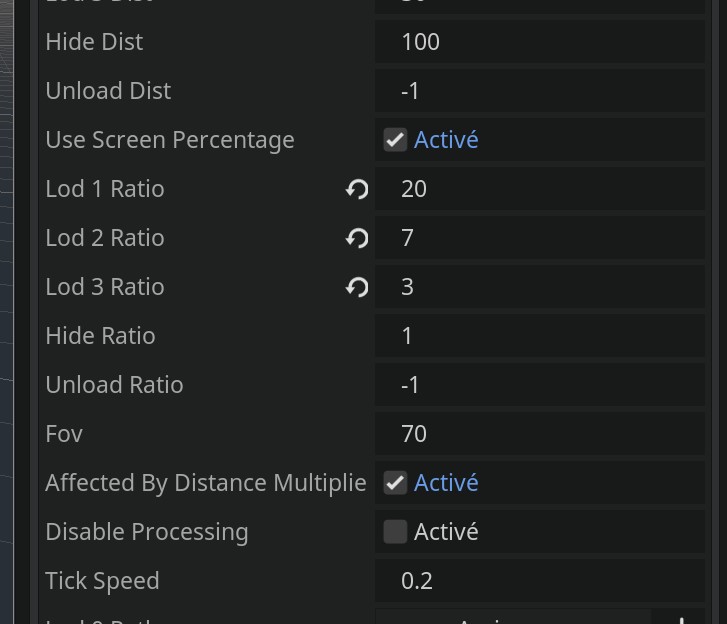
It is also possible with Lights.
It will calculate the longest axis on the AABB of all combined LOD objects/children and then get how far they have to be at the provided screen size percentages (e.g., LOD2 appears once the object is less than 7% of the screen) based on FOV and the longest axis. Keep in mind this means you must have a valid AABB for at least LOD0. Notably, this means you cannot use a Spatial for LOD0. It seems to visually display an AABB in the editor, but it does not inherit VisualInstance so it is not possible to actually access it.
Also, specifically for lights, keep in mind sometimes the AABB for the light may be larger than you expect. If you have a spotlight with a long range (as opposed to a strong energy), you will have a long and thus large AABB and longer distances than you may expect. Make sure to test!
Keep in mind if you change the object sizes or FOV, the distances will not be updated automatically. Updating the AABBs from the LODManager will update the distances in all objects, though.
A new test
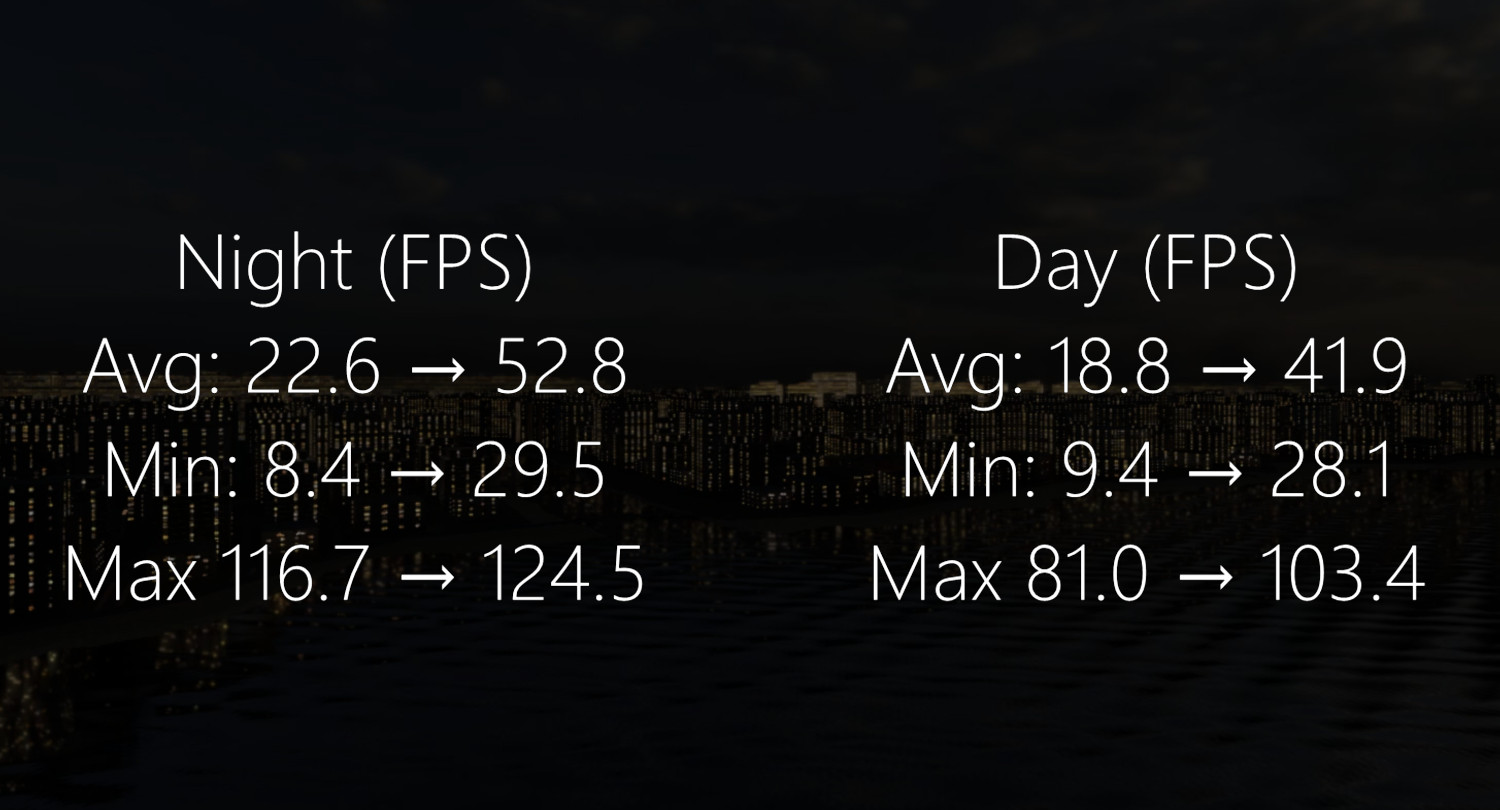
Finally, here is a new, slightly different test for the update!
The graph from the end of the video:
Things to keep in mind
- Due to the communication needed between the main and LOD thread, there are deferred calls. These, with enough objects, may overload your message queue. You can increase its size under the Memory->Limits project setting in Godot. “Disable processing” is now off by default, because it increases the number of deferred calls further.
- If you have a large amount of lights and are moving too quickly, you may experience stutters as lights or shadows are being disabled and enabled.
- When exiting the game, you may want to use
.stopLoop()manually. Sometimes letting the LODManager automatically end the thread and having the objects clean up can take a long time (with enough objects) and potentially cause other odd issues. - In the next section, see a note about an error you may see.
- (UPDATE) If for whatever reason you encounter issues with multithreading (some issues reported on Android), there is now a switch available on the LOD Manager to disable it. To avoid stutters, it only processes 10,000 items per frame (this is also adjustable).
Next steps/considerations
- In this test, there were a lot of large buildings that block objects. An occlusion culling system may have been an even better solution to the lag.
- A lot of the load was caused by the high number of draw calls, too. It would be a good idea to do some batching and combining meshes to further improve performance.